Resources

Turn on Continue with Microsoft for students and admin.

This page explains the live Microsoft sign-in path in plain language. The login button lives on `/login`, but the real session is still created by the auth module through `/api/auth/start` and `/api/auth/callback`.

Learner-friendly rule

Seeing the Microsoft button only means the website knows Microsoft sign-in is configured. A real Microsoft login is only proven when the browser leaves the site, returns through the callback, and opens your dashboard signed in.

What happens when someone presses the button
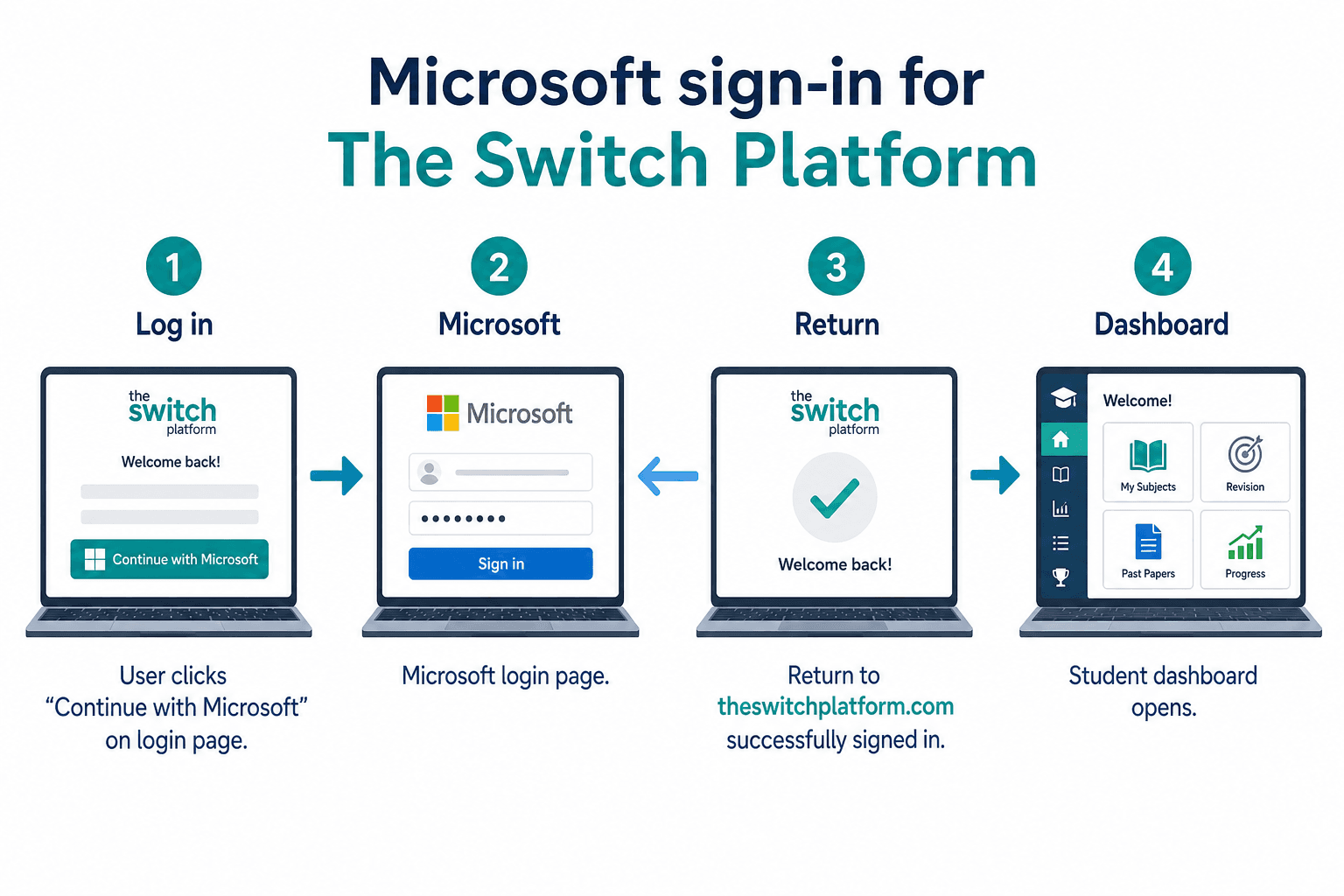
Diagram showing Log in, Microsoft sign-in, return to The Switch, and dashboard access
  1. Open `/login` and press **Continue with Microsoft**.
  2. Sign in on the Microsoft page with a school or work account.
  3. Microsoft sends the browser back to The Switch callback route.
  4. The platform creates `switch_auth_session` and opens the dashboard.

Azure setup checklist

  • Open Azure Portal → Microsoft Entra ID → App registrations.
  • Create or open your Switch app registration.
  • Supported account types: multitenant + personal Microsoft accounts (Hotmail/Outlook).
  • Authentication → Add platform → Web.
  • Add redirect URI: https://theswitchplatform.com/api/auth/callback
  • Copy Application (client) ID (a UUID) and a new client secret into Fly secrets — not placeholder text.

Environment block

SWITCH_OIDC_MICROSOFT_CLIENT_ID=your-azure-client-id
SWITCH_OIDC_MICROSOFT_CLIENT_SECRET=your-azure-client-secret
SWITCH_OIDC_MICROSOFT_AUTHORIZATION_URL=https://login.microsoftonline.com/common/oauth2/v2.0/authorize
SWITCH_OIDC_MICROSOFT_TOKEN_URL=https://login.microsoftonline.com/common/oauth2/v2.0/token
SWITCH_OIDC_MICROSOFT_USERINFO_URL=https://graph.microsoft.com/oidc/userinfo
SWITCH_OIDC_MICROSOFT_SCOPES=openid profile email

Full operator notes live in `docs/MICROSOFT_OAUTH_LIVE.md`. Run `npm run setup:microsoft-oauth-live` to open Azure and print the redirect URI.